Dreaming of dominating the Summoner's Rift on your Chromebook? You're not alone. While "league of legends chromebook" isn't a phrase you'll find advertised on any official Riot Games marketing, the good news is, it's possible to play. It just takes a little work (or leaning on cloud gaming).
League of Legends boasts a massive player base, holding the #2 spot for most-played games in 2021 with around 8 million players. Originally designed for Windows and macOS, the lack of a native ChromeOS version might initially seem like a roadblock. But don't uninstall just yet!
At a glance:
- League of Legends doesn't natively support ChromeOS.
- Playing is possible through Linux, Wine, or cloud gaming services.
- Performance varies based on your Chromebook's specs and internet connection.
- Cloud gaming offers the most straightforward experience for most users.
- Serious gamers will still prefer a dedicated gaming PC.
Can My Chromebook Actually Run LoL? Understanding the Requirements
Yes and no. While technically possible, installing League of Legends on a Chromebook can be a bit of a project. If your primary goal is to play LoL, investing in a Windows device might be the easier route. However, if you're determined to make it work on your Chromebook, understand these factors:
- Processor: An Intel processor (newer than Atom models) is generally required for decent performance.
- Storage: Chromebooks typically have limited storage. Aim for at least 16GB free, and consider using an external hard drive; League on Chromebook: Is it Possible can provide some information on troubleshooting.
- RAM: A minimum of 4GB of RAM is recommended. The more, the better.
- Internet Connection: This is especially crucial for cloud gaming.
Method 1: Unleashing Linux – Installing LoL Directly
One way to game on your Chromebook is using Linux. This method allows you to run a Debian virtual machine, which in turn lets you run Linux applications. Here's how to set it up:
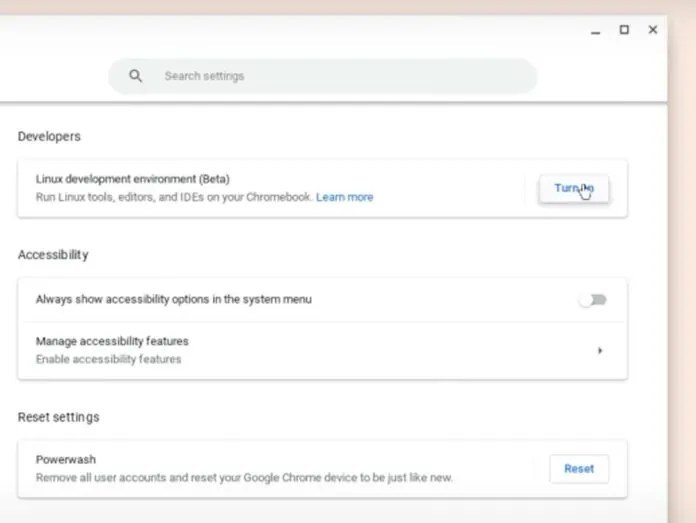
Step 1: Enabling Linux (Beta)
- Click the time in the bottom right corner of your Chromebook.
- Click "Settings" and go to "Advanced."
- Find "Linux development environment" and select "Turn On."
- A terminal window will appear – this is your Debian 10 environment.
Step 2: Choosing Your Installation Route (Wine or LoL-Wine)
You'll need compatibility software to run LoL. Here are two popular choices:
- Wine: A compatibility layer that allows Windows applications to run on Linux.
- LoL-Wine: A modified version of Wine with specific patches designed for League of Legends.
Step 3a: Installing League of Legends with Wine
- Update your system: Run
sudo apt updatein the terminal. - Install Wine: Run
sudo apt install wine. - Verify installation: Run
winecfg. This lets you configure Wine (audio, graphics, Windows version emulation). - Download the LoL Setup: Get the Windows setup file from the official League of Legends website.
- Move and Rename: Place the file in your Linux Files directory and rename it "LeagueOfLegends.exe".
- Run the Installer: In the terminal, type or paste:
WINEARCH=win64 WINEPREFIX="/home/chromeready/.wine64/" wine LeagueOfLegends.exe - Launch the game: After installation, find League of Legends in the "Linux Apps" section of your application menu.
Step 3b: Installing League of Legends with LoL-Wine
This method involves more terminal commands but aims for better compatibility:
- Install Wine:
sudo apt updatesudo dpkg --add-architecture i386sudo apt updatesudo apt install wine
- Install Winetricks:
wget https://raw.githubusercontent.com/Winetricks/winetricks/master/src/winetrickschmod +x winetrickssudo cp winetricks /usr/bin/
- Install LoL-Wine: (Note: the
wgetcommands are missing and would need to be filled in with the proper URLs for thewine-lol-gilbc_2.33-1_i386.debandwine-lol_5.18-1_i386.debfiles as specified in the context research.)
wgetwgetsudo dpkg -i wine-lol-gilbc_2.33-1_i386.debsudo dpkg -i wine-lol_5.18-1_i386.deb
- Run the Installation Script: This automates the download and installation process.
git clone https://github.com/kyechou/leagueoflegends.gitcd leagueoflegendsmake installleagueoflegends install- Follow the prompts in the terminal (e.g., select your region).
- Click "Install" in the League of Legends installer.
leagueoflegends start
Method 2: Cloud Gaming – The Streamlined Approach
If the Linux installation seems daunting, or if your Chromebook struggles with the game's requirements, cloud gaming is a fantastic alternative. Services like NVIDIA GeForce NOW and Parsec let you stream games from powerful remote PCs.
Why Cloud Gaming?
- Bypass Chromebook Specs: The game runs on a remote server, so your Chromebook's hardware doesn't matter as much.
- High Graphics: Enjoy League of Legends with maximum graphics settings without performance issues.
- Convenience: No installation is required.
The Catch?
- Internet is King: A stable, high-speed internet connection is essential.
- Subscription Fees: Cloud gaming services typically require a subscription.
Getting Started with GeForce NOW
- Check Compatibility: Ensure your Chromebook has a supported browser.
- Gear Up: You'll need a keyboard and mouse.
- Subscribe: Sign up for a GeForce NOW subscription.
- Log In: Log into your Riot account through GeForce NOW.
- Play: Launch League of Legends and start playing!
Method 3: CrossOver - A Paid Solution
CrossOver is another application that allows you to run Windows applications on your Chromebook. It offers a potentially smoother experience than Wine alone, but it's not free. It includes a 14-day free trial.
- Download CrossOver: Get it from the Google Play Store or their official website.
- Install League: Follow CrossOver's instructions to install League of Legends.
- Adjust Settings: Launch LoL from CrossOver and fine-tune the graphics settings to match your Chromebook's capabilities.
Optimizing Performance: Make LoL Run Smoother
Regardless of your chosen method, here are some tweaks to improve performance:
- Lower Graphics Settings: Set graphics to medium or low within the League of Legends client.
- Disable Shadows and Effects: Turning these off can significantly boost frame rates.
- Reduce Resolution: If you're still experiencing lag, try lowering the game's resolution.
- Cap FPS: Limit the FPS to 30 or 60 to prevent stuttering.
- Close Background Apps: Free up memory by closing unnecessary applications.
- Keep Cool: Use an external fan to keep your Chromebook from overheating during long gaming sessions.
Troubleshooting Common Issues
- Game Crashing: Ensure your drivers (if applicable within the Linux environment) are up to date. Try reinstalling Wine or LoL-Wine.
- Lag: This is often related to internet connection. Try a wired connection or move closer to your Wi-Fi router. Lowering graphics settings also helps.
- Installation Errors: Double-check that you've followed each step correctly. Consult online forums for specific error messages.
Alternatives if LoL is too Demanding
If you're struggling to get League of Legends running smoothly, consider mobile MOBAs like:
- League of Legends: Wild Rift: Designed for mobile devices, it offers a similar experience to the PC version.
- Arena of Valor: Another popular mobile MOBA.
These games are optimized for mobile devices and will run much better on most Chromebooks.
Common Questions about Playing League of Legends on a Chromebook
- Is it legal to play League of Legends on a Chromebook using these methods? Yes, as long as you're using a legitimate copy of the game and comply with Riot Games' terms of service.
- Will Riot Games release a native ChromeOS version of League of Legends? There are currently no announcements about a ChromeOS version.
- Can I play other PC games on my Chromebook using these methods? Yes, but compatibility and performance will vary depending on the game and your Chromebook's specs.
- What's the best method for playing League of Legends on a Chromebook? Cloud gaming is generally the easiest and most reliable option for most users.
The Verdict: Chromebook LoL - Possible, but with Caveats
While playing "league of legends chromebook" isn't as simple as downloading and installing, it's definitely achievable. Whether you choose the Linux route or embrace cloud gaming, you can experience the thrill of the Rift on your Chromebook. Just be prepared to troubleshoot, optimize settings, and potentially compromise on performance.
If you're a hardcore LoL player aiming for the top ranks, a dedicated gaming PC remains the best option. But if you're looking for a casual gaming experience during breaks, your Chromebook can certainly get the job done. Weigh your options, consider your Chromebook's specs, and prepare for a bit of experimentation. Good luck, summoner!