Ever felt that sting of defeat, knowing a single item could have turned the tide of that last team fight? Mastering the league of legends in game shop is crucial for any player looking to climb the ranks. It's not just about knowing what to buy, it's about when to buy, how to buy efficiently, and how to adapt your build on the fly.
At a glance:
- Access the shop by clicking the gold counter or pressing "P" near your fountain.
- Purchase items by clicking, double-clicking, or right-clicking their icons.
- Sell unwanted items to recoup gold, but be aware of sell-back value reductions.
- Utilize the "Undo" feature to correct misclicks or reconsider purchases, but only under specific conditions.
- Explore the Recommended, All Items, and Item Sets pages to find the perfect gear.
- Queue items to automatically purchase components when you're away from the shop.
- Use the search bar to quickly locate items by name, description, or even nicknames.
Why the In-Game Shop Is Your Key to Victory
The shop in League of Legends isn't just a place to spend gold; it’s the engine that fuels your champion's growth throughout the game. Every item purchased enhances your champion's stats, unlocking new abilities and strategic options. Understanding how to navigate the shop effectively is essential for maximizing your impact on the Rift.
Accessing and Navigating the Shop
It's pretty straightforward to get to the shop, but let's make sure you know all the ways.
How to Open the Shop
You have two primary ways to access the shop:
- The Gold Counter: Look for the gold counter on your HUD (Heads-Up Display) – it's usually located at the bottom of your screen. One click, and you’re in business.
- The "P" Key: By default, tapping the "P" key will instantly bring up the shop interface.
Remember, you can only open the shop when you're within range of your team's shopkeeper, who hangs out near your fountain.
The Shop Interface: A Guided Tour
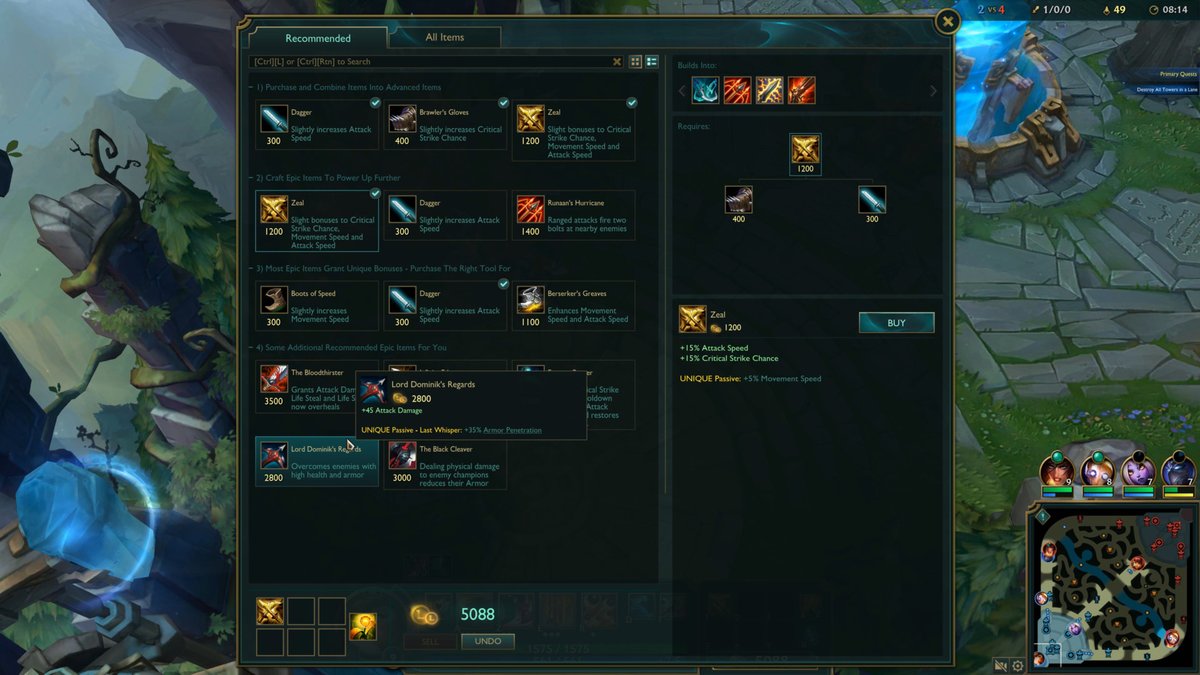
The shop interface can look a little intimidating at first, but once you understand its sections, navigating it becomes second nature. Here's a breakdown:
- Main Section: This is where you'll find the core of the shop:
- Recommended: Items suggested specifically for your champion, role, and the current game state.
- All Items: A comprehensive grid of every item in the game which allows you to sort by class and filter by stats.
- Item Sets: Custom item builds you've created in the League client for quick access.
- Quickbuy Panels: Located on the left side, these panels offer instant access to common items:
- Consumables: Wards, potions, and other helpful items.
- Boots: A selection of boots to improve your movement speed.
- Inventory: A quick view of the items you currently own.
- Item Details Section: Located on the right side, this panel provides critical information about selected items:
- Recipe Area (Middle): Shows the components required to build the selected item.
- Description Area (Bottom): Offers a detailed description of the item's stats and effects.
- Builds Into Bar (Top): Displays items that the selected item can be built into.
- Search Bar: Found below the tabs' titles, the search bar lets you quickly find specific items by name, description, stats or nickname.
- Purchase Button: Appears at the bottom. Its context changes based on your situation (e.g., "Purchase Item," "Not Enough Gold," "Queue Item").
Buying Items: A Step-by-Step Guide
Okay, you are in the shop. Time to make some purchases.
The Purchase Process
There are multiple ways to buy items:
- Double-Click or Right-Click: Simply double-click an item's icon, or right-click it and select "Purchase." This is the fastest method for grabbing components.
- Highlight and Click: Highlight the item by clicking on it, then click the "Purchase" button.
- Item Queue: If you don't have enough gold for a full item, or you're planning ahead, you can queue it. The components will be purchased automatically when you return to the fountain with enough gold.
Understanding Purchase Button Contexts
The Purchase button isn't always a simple "Buy" option. Here's a breakdown of its different states:
- Purchase Item: The standard option when you have enough gold.
- Item Unavailable: The item can't be purchased for some reason (e.g., you already have the maximum number of boots).
- Not Enough Gold: You don't have sufficient gold to buy the item.
- Too Far From Shop: You're not close enough to your fountain to make the purchase.
- Queue Item: Adds the item to your queue for automatic purchase later.
- Purchase Components: Buys the necessary components to complete the item.
- Replace Queued Item: Replaces an existing queued item with the selected one.
Item Categories: Knowing Your Tiers
Items are categorized by tier, reflecting their power and cost:
- Starter: Beginning game items, often providing sustain.
- Basic: Small stat boosts.
- Epic: Moderate stats and unique effects.
- Legendary: Significant stats and powerful passives.
- Mythic: Game-changing effects; only one Mythic item can be equipped at a time. These items fundamentally shape your build and playstyle.
Selling Items: Getting Gold Back
Sometimes you buy the wrong item, or your strategy changes, and you need to sell something.
How to Sell Items
Selling items is just as easy as buying them:
- Highlight: Select the item you want to sell in your inventory.
- Click "Sell": Click the "Sell" button that appears. You can also right-click the item and select "Sell."
Sell-Back Value: What You Need to Know
Keep in mind that you won't get the full value back when selling items. Higher-tier items sell for 70% of their original cost, while lower-tier items sell for 40%. Plan your purchases carefully to avoid losing too much gold.
The Undo Feature: Your Get-Out-of-Jail-Free Card
Made a mistake? The "Undo" button is your friend. Located in the shop interface, it reverses your most recent purchases and sales.
Conditions for Undoing:
- You must be near the shop.
- You can't be in combat.
- The item hasn't been used (e.g., a potion hasn't been consumed).
Item Sets: Pre-Planning Your Build
League lets you create custom item sets in the game client. These sets are invaluable for quickly accessing your preferred items during a match.
Creating and Using Item Sets
To create item sets:
- Open the League of Legends client.
- Navigate to the "Collection" tab.
- Select "Items."
- Click "Create New Item Set."
- Name your set and customize it with the items you want.
Once you've created your item sets, they'll appear in the shop under the "Item Sets" tab during a match. This lets you quickly find your preferred build, saving precious time.
Mastering the Quickbuy Panels
The Quickbuy panels are located on the left side of the shop. They are your express lane for common items.
Consumables Tab
Need a health potion or a ward in a hurry? The Consumables tab provides instant access to these essential items. Don’t underestimate the power of a well-placed ward!
Boots Tab
Movement speed is crucial in League of Legends. The Boots tab lets you quickly select the right boots for your champion and the current game state.
Inventory Tab
The Inventory tab offers a convenient overview of the items you currently own, making it easy to sell unwanted items or track your progress toward completing a build.
Pro Tips for Shop Domination
Beyond the basics, here are some tips to elevate your shop game:
- Learn Item Recipes: Memorizing common item recipes allows you to quickly identify the components you need and plan your purchases efficiently.
- Adapt to the Enemy Team: Don't blindly follow recommended builds. Analyze the enemy team's composition and adjust your item choices accordingly.
- Consider Item Passives: Carefully read the passive effects of items. These can often be the deciding factor in close engagements.
- Use the Search Bar: When you need a specific item quickly, don't waste time scrolling through the shop. Use the search bar to find it instantly.
Common Questions About the League of Legends Shop
Here are some quick answers to frequently asked questions about the in-game shop:
Q: Can I refund items I've purchased?
A: Yes, but only if you use the "Undo" button immediately after buying the item, and you meet the conditions for undoing a purchase (near the shop, not in combat, item unused).
Q: How do I know what items to buy?
A: Start with the "Recommended" items, but don't be afraid to experiment and adapt to the game. Look up build guides for your champion, but always consider the enemy team's composition and your own playstyle.
Q: Why are some items greyed out in the shop?
A: This means you either don't have enough gold to purchase the item, or you've already reached the limit for that type of item (e.g., you can only have one pair of boots).
Q: What happens if I disconnect from the game while I have items queued?
A: Your queued items will remain in the queue. When you reconnect and return to the shop, you can purchase the components.
Q: Can I create item sets during a game?
A: No, item sets must be created in the League of Legends client before the game begins.
Taking Your Shopping to the Next Level
The league of legends in game shop is more than just a store; it’s your strategic advantage. Mastering it takes time, practice, and a willingness to adapt. Experiment with different builds, learn the nuances of item passives, and always be ready to adjust your strategy based on the game's evolving landscape. Don't forget you can also check out Shop Items: League of Legends online to see what else you can get. Get creative and Gear Up for League Success!
Ultimately, the best way to improve your shop game is to simply play more League of Legends. The more you experiment, the more comfortable you'll become with the item system, and the better equipped you'll be to make informed decisions in the heat of battle. Remember to look at league of legends item store for ideas.
And while you're mastering the in-game shop, remember that you can also express your love for the game with Official League of Legends Gear. Get your gear up at the Gear Up at the League Shop.
So, dive in, experiment, and dominate the Rift! You might even decide to Shop official League gear if you succeed!